Hasn’t AI made us all super productive?
Let’s be honest, by the start of 2026, we were all supposed to be sitting back while “AI Agents” did 80% of our work. But as anyone actually trying to meet numerous deadlines knows, the reality is a bit different. Yes, AI agents can be incredibly helpful, enabling us to do chunks of work quickly that would have been more ime consuming before, but, this has been met with greater expectations (both professionally, and personally, for what we can achieve in the same time.
My browser windows (yes, multiple, with numerous tabs open on both) used to be a graveyard of “revolutionary” tools that I signed up for, used for three days, and then forgot I was paying for. Easily done, right? Well, at least, I hope I am not the only one who “set and (promptly) forgot”, their productivity tools.
Towards the end of last year, I got tired of “managing my tools” more than doing my work. I ended up spending more time trying to set up my productivity tools to enable my work than doing the actual tasks that I needed to complete. I decided to strip everything back and build a stack based on one rule: If it doesn’t reduce my cognitive load within a minute of opening it, it’s gone.
After a few months of trial and error, I’ve landed on a workflow that finally feels “streamlined” and productive. It’s a mix of heavy-hitting AI agents and surprisingly simple tools that keep me grounded. This isn’t a list of every tool on the market, that’s what we’re trying to avoid. It’s a deep dive into the specific ecosystem I use to manage my tasks every single day, meet my deadlines and be a more efficient employee, allowing me to actually sign off when I close my laptop.
Here is exactly how I’m staying productive in 2026.
The AI Agent
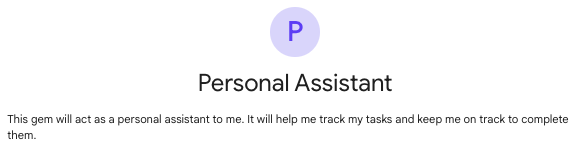
So, first up, is the AI agent. I work in a Google house.The best thing about this is, that as part of my Google Workspace license, I get access to Gemini Enterprise. Using this, I’ve created a number of custom gems that help me to work more efficiently. One of these is my personal assistant gem. I’ll jump on a solo Google Meet, talk through the tasks that I have to complete that week, who the key stakeholders are, and what needs to be the priority.
Following this, I jump onto a standup with my team, where I may have new tasks added to my weekly agenda and, again, Gemini is taking notes. Once this meeting is complete, I will add the notes from both meetings to a prompt to my personal assistant gem, asking it to book the necessary meetings, put time slots in for me to focus on tasks and to highlight areas that may be at risk (due to stakeholders being on annual leave, the deadline being too tight, or various other reasons).
This saves me time having to explore the calendar of every stakeholder to book necessary meetings and blocks out time for me to focus on tasks and adds some drop in sessions that people can book if they need some one-on-one time with me.
Alternatives: Custom GPTs, Claude Projects
The ToDo List
Everyone needs a to-do list right? I’ve used a variety of different solutions to this, pen and paper, erasable whiteboards and alarms on my phone to name a few. I always find myself trying software solutions for this. Recently, I’ve been using Superlist. I find that the free version meets all of my requirements. I don’t use this to add meetings to my to do list, or focus times, as this is done by the custom gem above, but I use this to add the smaller tasks. Updating my OS, booking flights for work, sending specific emails, things that, if I didn’t have a small reminder for, could easily take a backseat to tasks that require a bit more of a time commitment.
Alternatives: ToDoIst, Apple Reminders, TickTick, Habatica
The Screen Time Manager
Let’s be real, I think we’re all guilty of spending some time on social media, news websites, or watching that one YouTube video that someone sent in Slack. It’s ultimately really easy to get lost in the instant gratification of modern media.
For me, the solution has been Jomo. I run it from 9am to 11am, 11:30am to 1pm, 2pm to 4pm and 4:30pm until the end of my work day. This allows me to focus completely on work. Getting those tasks done, emails sent and making me more efficient. The app claims to allow you to reclaim 2+ hours everyday. I would say this would be more tailored to having it on your phone, and avoiding the doom scrolling of TikToks, YouTube Shorts and Instagram Reels. Overall though, I find this incredibly beneficial, allowing me to really focus on tasks, without needless distractions.
Alternatives: Opal, OneSec (phone only).
The AutoFill Password Manager
I think passwords may be the bane of life for a lot of people. With more and more services appearing every day, it can be a struggle to keep on top of the climbing number of passwords, OTP codes and services that you use passwordless for. Thankfully, applications exist that not only store all of your passwords securely, but autofill these passwords for you in browsers, applications and can be shared between devices.
I am really torn on this one. Professionally, I use 1Password. The security precautions (looking at you secret key) are an incredibly helpful layer of security in enterprise organisations but, despite this, I keep finding myself drawn back to Bitwarden.
For personal use, it’s easy to use and setup, It’s secure (though, if you’re self-hosting, it’s only as secure as your host is) and it’s reliable. A few years ago, it had what some may have considered an ‘unfriendly’ UI, but since the update in late 2024, this can no longer be a criticism. It’s modern, smooth, aesthetically pleasing and, most importantly, easy to use. The browser extension works flawlessly, allowing auto login of credentials and storage of MFA codes. After briefly leaving Bitwarden to migrate to 1Password for personal use, I have switched back and can’t see myself leaving again.
For business use, you would need to check use cases (for businesses where PAM is at the core of security requirements, Keeper is the market leader). Autofilling passwords is an absolute dream with the browser extension and saves so much time, rather than trying to remember the password that you used, or even worse, the string of numbers you added to the same password you use for every login.
Alternatives: Keeper Security, Dashlane, NordPass.
The Timer
Since I was in university, I’ve been a big fan of the Pomodoro technique. Even writing this article, I’ve been breaking it down into 25 minute chunks. I think it allows me to have more manageable periods of time which make me more likely to be successful. It’s like when you run your first 10k. You break the 10k down into 1km chunks, focusing only on the next kilometer, rather than the end goal.
I use a physical pomodoro timer. It’s far quicker for me to toss a cube onto a side and have it start counting down, like a digital hourglass, rather than having to have a webpage open, or an app downloaded. It also adds a nice design touch to my desk, and can, at times of real focus, can allow me to just quickly glance at the remaining time, rather than having to pull myself out of my task to check a different app and then spend time getting back to where I was in my task.
This is the one I use (note – this is not an Amazon affiliate link, I don’t make any money from this). I find it very reliable, easy to transport and really easy to use. There are a multitude of virtual alternatives, one of which that I like is Forest. It allows you to build trees with successful focus periods and gives you a forest (hence the name) that you have grown with periods of focus.
Alternatives: Phone Timer app, Tomito
The Web Apps
As I said previously, I work in a Google house. The worst part about Gmail is that it doesn’t have a desktop client. I am a big fan of desktop email clients. For my personal email accounts, I flip between Apple Mail and Canary mail, but I like to keep accounts separate for work. I had struggled to find a client that I liked for Gmail. For reference, at home, I have an ultrawide monitor as my main monitor and I run a iPad with Sidecar as a second monitor.
I have shortcuts setup for email, Google Calendar, Meet and a small number of other apps. It’s easy to create these on a Mac. In Safari, File > Add to Dock. In Chrome, you click the three dots in the top right corner > Save, cast and share > Install page as app. This creates small web apps for these services that might not provide a native app on Mac (hint: these can also be deployed by your MDM admin if you’re unable to do this, just send them a request).
Conclusion
We can all be more productive. Even if you apply everything in this article, there are a million and one other things that you could implement to try and improve productivity. It’s important to remember to not let perfection become the enemy of good. We should always be striving to improve, but when we want to be perfect, the constant planning and research can cause us to fall into planning paralysis.
Improving productivity by 1% every day, will lead to a completely different way of working, not by the end of the year, but by the end of next month. Hopefully the suggestions above can help you find the right productivity tools for you. If you need any help or advice, please feel free to reach out to me on LinkedIn!